How to Use MT Manager on Android
MT Manager is a powerful Android file management tool that combines everyday file operations with advanced options for working with APKs, archives, text files, and supported Android resources. If you are using the app for the first time, its many tools can seem confusing. Once you understand the main interface and basic functions, managing files becomes much easier.
This guide explains how to use MT Manager on Android, from browsing folders and moving files to opening APKs, managing archives, and using advanced tools.
Getting Started With MT Manager
After installing MT Manager, open the application and allow only the permissions required for the tasks you want to perform. The main interface provides access to your device storage and available folders.
Before making advanced changes, it is a good idea to keep a backup of important files. This is especially important when working with application packages or system-related directories.
Understanding the MT Manager Interface
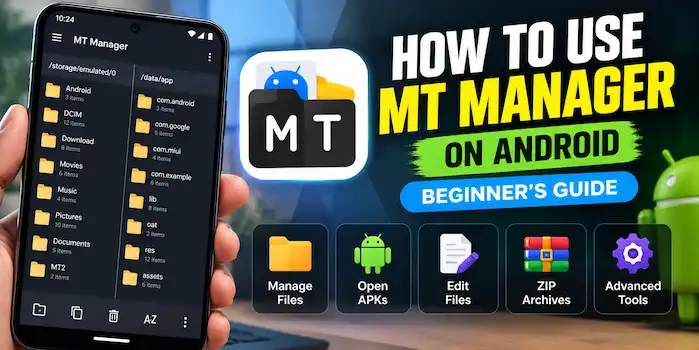
The interface is designed around file management. Depending on your version and device configuration, you may see two file panels that make it easier to work between different folders.
You can browse directories, select files, create folders, rename items, copy data, move files, and remove unwanted content.
Browse Files and Folders
Open a storage location and navigate through its directories. Tap a folder to view its contents and use the available file actions when you need to manage an item.
The dual-panel layout can be useful when transferring files between two different locations.
Select Files
Press and hold a file or folder to select it. You can then choose an available operation such as copying, moving, renaming, or deleting the selected item.
For multiple files, use the selection options to choose several items before performing a supported action.
How to Copy and Move Files
Copying and moving files is one of the easiest ways to use MT Manager.
- Open the folder containing the file.
- Select the file or files you want to manage.
- Choose the copy or move option.
- Open the destination folder.
- Confirm the operation.
The two-panel interface can make this process faster because you can work with the source and destination locations more conveniently.
How to Rename Files
To rename a file, select it and choose the rename option. Enter the new name carefully and keep the correct file extension.
Changing a file extension does not automatically convert its format. For example, renaming a text file as an APK does not turn it into an Android application.
How to Delete Files
Select the unwanted file or folder and choose the delete option. Always check the selected items before confirming.
Be especially careful when browsing protected or system-related directories. Deleting important Android files can cause applications or system functions to stop working correctly.
How to Open APK Files
MT Manager can be used to inspect supported APK packages. An APK is the package format used to distribute and install Android applications.
To explore an APK:
- Locate the APK file in your storage.
- Select or open the package using the available APK options.
- Browse its internal files and resources.
- Use supported tools to inspect editable content.
APK structures can contain resources, configuration files, compiled code, and other components. Advanced editing should only be performed on applications you own or have permission to modify.
How to Edit Supported APK Resources
Experienced Android users can use MT Manager to work with supported application resources. Depending on the APK structure, this may include XML resources, text-based files, and other editable components.
Before making changes, create a backup of the original APK. A small modification can sometimes prevent an application from working properly.
For a more detailed workflow, see our guide on how to edit APK files with MT Manager.
How to Work With ZIP Files
MT Manager can also help manage supported compressed archives.
You can generally use the archive tools to:
- Open an archive
- Browse its contents
- Extract files
- Add or manage supported files
- Organize extracted content
This is useful when dealing with downloaded packages, backups, or project files.
How to Edit Text Files
The built-in text editor can be useful for supported text-based files. Locate the file, open it with the available editor, make the required changes, and save the file.
Always keep a backup before changing configuration or project files. Incorrect formatting can affect how a file is processed.
How to Search for Files
When a folder contains many items, manually looking for a specific file can take time. Use the search function to locate files or supported content more quickly.
Search is particularly useful when working with large folders, Android projects, or application files containing many resources.
How to Perform Batch Operations
MT Manager can simplify repetitive file tasks by allowing multiple items to be selected at once.
For example, you can select several files and perform supported operations such as copying, moving, renaming, or deleting them together.
Batch operations are especially useful when organizing large numbers of files.
Using Root Access
Root access can provide access to directories that are normally restricted by Android. This can be useful for experienced users who need to manage system-level files.
However, root access also increases the risk of accidentally changing or deleting important system data. Do not modify system files unless you understand their purpose and have a reliable backup.
Useful Tips for Beginners
If you are new to MT Manager, start with basic file management before using advanced APK or root tools.
Keep these tips in mind:
- Back up important files before editing them.
- Check file names and extensions carefully.
- Avoid deleting unknown system files.
- Use APK editing tools only on files you are authorized to modify.
- Keep the original APK before making changes.
- Review permissions before granting access.
- Use a trusted source when downloading APK files.
Common Mistakes to Avoid
Beginners can run into problems when they make changes without understanding the file structure. One common mistake is modifying an APK and expecting it to work exactly like the original.
Another issue is deleting files from restricted directories without knowing their purpose. This can lead to application errors or system instability.
It is also important to remember that changing a file extension does not change its actual format.
Is MT Manager Easy to Use?
MT Manager is relatively straightforward for normal file management, but some of its advanced tools require Android knowledge. Basic tasks such as copying files, creating folders, extracting archives, and renaming items can be learned quickly.
APK editing, Smali, DEX, root access, and other technical functions require more experience. Beginners should learn these tools gradually and avoid modifying files they do not understand.
Final Thoughts
Learning how to use MT Manager on Android starts with simple file management. Once you become comfortable with its interface, you can explore features such as archive handling, APK inspection, text editing, search, batch operations, and other advanced tools.
For safe use, always keep backups and work with applications and files you own or are authorized to modify. If you are ready to explore more advanced functions, the next step is learning how to edit APK files with MT Manager.