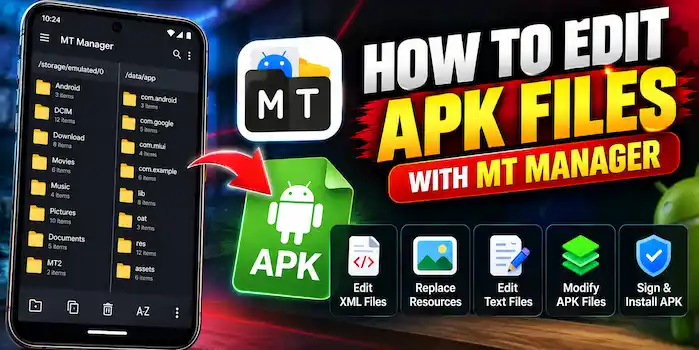
How to Edit APK Files with MT Manager
MT Manager provides several tools for exploring and editing supported Android application packages. An APK contains the files and resources needed to install an Android application, and its internal structure can include resources, XML files, assets, and compiled code.
For beginners, APK editing can look complicated at first. However, understanding the basic workflow makes it easier to inspect an APK, locate supported files, make simple changes, and save the modified package correctly.
This guide explains how to edit APK files with MT Manager while focusing on safe and legitimate use.
What Is APK Editing?
APK editing means opening an Android application package and modifying supported files or resources inside it. Depending on the application structure, this may include XML resources, images, text files, configuration data, or other components.
APK editing should only be performed on applications you own or have permission to modify. Changing an application without authorization can create security, copyright, or licensing issues.
What You Need Before Editing an APK
Before starting, prepare the following:
- MT Manager installed on your Android device
- The APK file you want to inspect
- Enough free storage space
- A backup of the original APK
- Permission to modify the application
Keeping the original file is important because an incorrect change can make the modified package unusable.
How to Open an APK in MT Manager
Start by locating the APK file in your device storage.
- Open MT Manager.
- Navigate to the folder containing the APK.
- Select the APK file.
- Choose the available option for exploring or opening the package.
- Browse the internal files and folders.
You should now be able to see the components contained within the package.
Understanding APK Files and Folders
An APK can contain different types of files. The exact structure depends on the application, but you may encounter resources, assets, configuration files, and compiled application components.
Some files can be edited more easily than others. Beginners should start with simple text or resource files before working with compiled code.
How to Edit XML Files
XML files are commonly used for Android resources and configuration.
To edit a supported XML file:
- Open the APK structure.
- Locate the required XML resource.
- Open it using the available editing option.
- Make a small and valid change.
- Save the file.
- Review the modified content before continuing.
XML syntax must remain valid. A missing character, incorrect tag, or broken structure can prevent the application from working properly.
How to Edit Text Files
Some APK packages contain editable text-based files. MT Manager’s built-in tools can make it possible to inspect and modify supported files without switching to another application.
When editing text, avoid changing values that you do not understand. If the file controls application settings or resources, even a small mistake can cause unexpected behavior.
How to Replace Supported Resources
Depending on the APK structure, you may be able to replace certain resources with compatible files.
For example, a development project may contain images, icons, or other resources that need to be updated during testing.
Make sure the replacement file uses a compatible format, name, location, and structure. Keep the original resource available so you can restore it if something goes wrong.
Working With the APK’s Code
Advanced APK editing can involve Smali and DEX-related components. These areas require more Android development knowledge than basic resource editing.
Smali represents a readable form of Android bytecode, while DEX files contain compiled Android application code.
If you are learning these tools, start by inspecting the files rather than making major changes. Work with your own applications or authorized test projects.
How to Save APK Changes
After making the required modifications, review your changes carefully before rebuilding or saving the package.
A successful modification does not always mean the APK will install or run correctly. The application may require additional steps depending on the type of changes made.
Always keep the original APK separate from the modified copy.
APK Signing After Editing
An APK that has been modified may need to be signed before Android will accept it for installation or testing.
The signing process depends on the APK and the tools available in your MT Manager version. If the application was originally signed by a developer, modifying its contents can invalidate the original signature.
For your own development or testing projects, use an appropriate signing process before installation.
How to Install a Modified APK
After preparing and signing a modified APK, you can attempt to install it on a compatible Android device.
Before installation:
- Keep a backup of the original application.
- Confirm that the modified APK was created correctly.
- Make sure you have permission to install the package.
- Remove or update the existing version only when appropriate.
- Install the modified package and test its basic functions.
If Android reports an installation or parsing error, review the changes and signing status.
Common APK Editing Problems
APK Does Not Install
A modified package may fail to install because of an invalid structure, incompatible Android version, signature problems, or other changes.
Application Crashes
If the application opens and immediately closes, one of the modified resources or code components may be incompatible.
Restore the original file or reverse your latest changes to identify the problem.
XML Error
An invalid XML structure can cause resource or application errors. Check tags, values, formatting, and other changes made to the file.
Signature Problem
Modifying an APK can invalidate its original signature. A compatible signing process may be required for testing a modified package.
Changes Do Not Appear
Some resources may be cached or controlled by other application components. Check whether the correct file was edited and whether the package was rebuilt correctly.
Tips for Safer APK Editing
Follow these practices when working with application packages:
- Always keep the original APK.
- Make one change at a time.
- Test changes gradually.
- Avoid editing unknown system components.
- Use applications and APKs you are authorized to modify.
- Keep backups of important files.
- Do not install APKs from untrusted sources.
- Learn the purpose of a file before changing it.
Is MT Manager Good for APK Editing?
MT Manager can be useful for Android users who need to inspect and modify supported APK resources directly from a mobile device. Its file manager, archive tools, resource handling, text editor, and advanced Android-focused functions provide a convenient environment for authorized testing and development work.
However, advanced APK modification requires technical knowledge. Beginners should start with basic file operations and simple resources before moving into Smali, DEX, or system-level components.
Final Thoughts
Editing APK files with MT Manager can be useful for Android development, testing, learning, and working with applications you are authorized to modify. The safest approach is to keep the original package, make small changes, test each modification, and understand the purpose of the files you edit.
If you are new to MT Manager, start with basic APK inspection and supported resource editing. Once you understand the structure of an Android package, you can gradually explore its more advanced tools.