How to Edit XML Files in MT Manager
XML files are commonly used in Android applications to store resources, settings, layouts, and other structured information. MT Manager provides tools that allow experienced Android users to open and edit supported XML files directly on their devices.
If you are new to XML editing, the process may look technical at first. However, understanding the basic structure of an XML file can help you make simple changes without using a computer.
This guide explains how to edit XML files in MT Manager, how to save changes, and what to check if the modified application stops working.
What Is an XML File in Android?
XML stands for Extensible Markup Language. Android applications use XML for different types of resources and configuration data.
Depending on the application, XML files may contain information related to layouts, strings, settings, menus, permissions, or other resources.
Not every XML file can be safely edited in the same way. Some files may be compiled or depend on other application components.
What You Need Before Editing XML
Before starting, make sure you have:
- MT Manager installed on your Android device
- The APK or XML file you want to edit
- Enough free storage
- A backup of the original file
- Permission to modify the application
Always keep an untouched copy of the original file. This allows you to restore it if an edit causes an error.
How to Open an XML File in MT Manager
Start by opening MT Manager and navigating to the location of your XML file.
If the file is inside an APK:
- Open MT Manager.
- Locate the APK package.
- Open the package contents.
- Browse to the relevant resource folder.
- Locate the XML file.
- Open it with the available XML editing option.
The exact folders and files can vary between applications.
Understanding Basic XML Structure
Before changing anything, it helps to understand the basic structure of XML.
An XML document usually contains elements, attributes, values, and opening and closing tags. These components work together to define the information stored in the file.
For example, a simple XML structure may look like:
<item name="example">Sample Text</item>Here, item is the element, name is an attribute, and Sample Text is the value.
A missing tag or incorrect character can make the XML invalid, so changes should be made carefully.
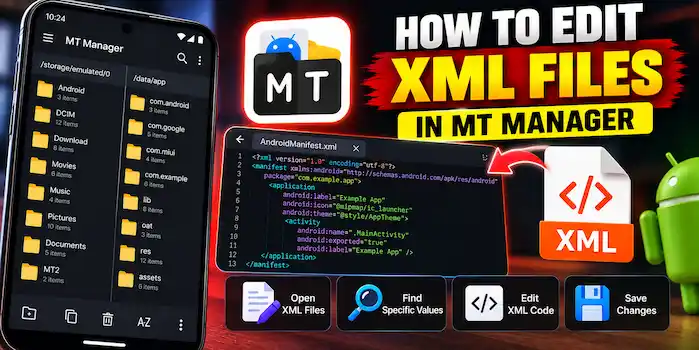
How to Edit XML Files in MT Manager
Once you have opened a supported XML file, identify the value you want to change.
A basic workflow is:
- Open the XML file.
- Find the required element or value.
- Make the necessary change.
- Check the surrounding tags.
- Save the file.
- Review the modified content.
For beginners, it is better to make one small change at a time. This makes it easier to identify the cause if something goes wrong.
How to Find Text in a Large XML File
Large XML files can contain hundreds or thousands of lines. Searching manually can be difficult.
Use the available search function to locate a specific word, value, attribute, or section. Search is particularly useful when you already know the text or resource name you want to modify.
After finding the relevant section, check the surrounding lines before making any changes.
Editing XML Values
Some XML files contain readable values that can be modified for legitimate development or testing purposes.
For example, a text value might be changed while testing your own application or resource configuration.
Always consider how the value is used before changing it. A value that looks simple may be connected to another part of the application.
Editing XML Inside an APK
When an XML file is stored inside an APK, editing it is more complicated than editing a normal document.
The application package may use compiled resources, references, and other dependencies. A change that looks correct in the editor may still cause the application to fail if it breaks those relationships.
For this reason, keep the original APK and test changes gradually.
How to Save XML Changes
After editing the file, review the changes before saving.
Check that:
- Opening and closing tags match.
- Required attributes are still present.
- Quotes and brackets are correctly placed.
- You did not accidentally remove important content.
- The file remains structurally valid.
Then save the changes using the available option.
What Happens After Editing an APK XML File?
If you edit an XML file inside an APK, additional package steps may be required before the modified application can be installed or tested.
Depending on the changes, the package may need to be rebuilt and signed. The original application signature may no longer remain valid after modification.
For your own applications and authorized testing projects, make sure the final APK is prepared correctly before installation.
Common XML Editing Problems
XML Parse Error
A parse error usually indicates that the XML structure is invalid. Check recently changed tags, brackets, quotation marks, and values.
Application Crashes
If the application crashes after an XML modification, the changed resource may be incompatible with the application.
Restore the original version and test your changes individually.
Changes Are Not Showing
Sometimes a change may not appear because the application uses another resource, cached data, or a different configuration file.
Check that you edited the correct XML resource and that the package was rebuilt correctly.
APK Will Not Install
A modified APK may fail to install because of package, signature, compatibility, or structural problems. Review the modification process and ensure the final package is properly prepared.
Tips for Safe XML Editing
Follow these practices when working with XML files:
- Keep a backup before editing.
- Make small changes first.
- Do not remove unknown tags without understanding them.
- Check XML syntax after every major change.
- Work with applications you own or are authorized to modify.
- Keep the original APK separate from modified copies.
- Test changes one at a time.
Can Beginners Edit XML With MT Manager?
Yes, beginners can learn basic XML editing, especially when working with simple and readable files. However, Android XML resources can become more complicated when they are compiled or connected to other application components.
Start by learning basic XML syntax and making changes to files from your own test projects. Avoid modifying system or production applications until you understand how their resources work.
MT Manager XML Editor vs Regular Text Editor
A regular text editor can open plain XML documents, but MT Manager is useful when the XML file is part of an Android application package.
Its Android-focused file management and APK handling tools allow users to work with files within the same environment. This can make the workflow more convenient for Android testing and development.
Final Thoughts
Learning how to edit XML files in MT Manager can help Android users understand and manage supported application resources directly from a mobile device. The key is to make careful changes, preserve the original files, and understand the structure of the XML before editing it.
If you are working with APKs, start with simple resource files and test each change separately. For advanced modifications, make sure you understand the application’s structure and only work with files you are authorized to modify.